When you collect your phone from our counter after a screen or battery replacement, the device is assembled, tested and ready to use. There is, however, a short part of the job that nobody but you can do — the configuration that iOS asks for only once the phone is unlocked with your passcode. The reason is simple and deliberately set up that way: we do not ask for your passcode. You hand the phone to us locked and it comes back to you locked. Everything that can be done without getting into your system — we do. What iOS ties to your passcode and your Apple Account stays with you, and for that we give you the exact order of steps here. One note before you start: iPhone does not offer Serbian as a system language. You will see the labels in Settings in English or in the language you have chosen, so for every step we also give the exact English label to look for on the screen. ---
What iPhone shows after a screen or battery replacement
From iOS 15.2 onwards, Apple keeps a record of replaced parts in Settings. If a part has been replaced on the device, a Parts & Service History section appears in Settings → General → About. Next to the part there is one of these labels:
| Label on the phone | What it means |
|---|---|
| Genuine | The part is an original Apple part, installed through the Apple process. No note of any kind. |
| Used | The part is of the original type and has gone through Apple configuration, but it was previously used or was not sourced from Apple service. |
| Unknown | The part has not passed Apple's check — most often with more affordable screen types, or with an original panel whose glass has been replaced. |
This is what it looks like in practice, on a phone photographed in our shop after a battery replacement (iOS 26.6):
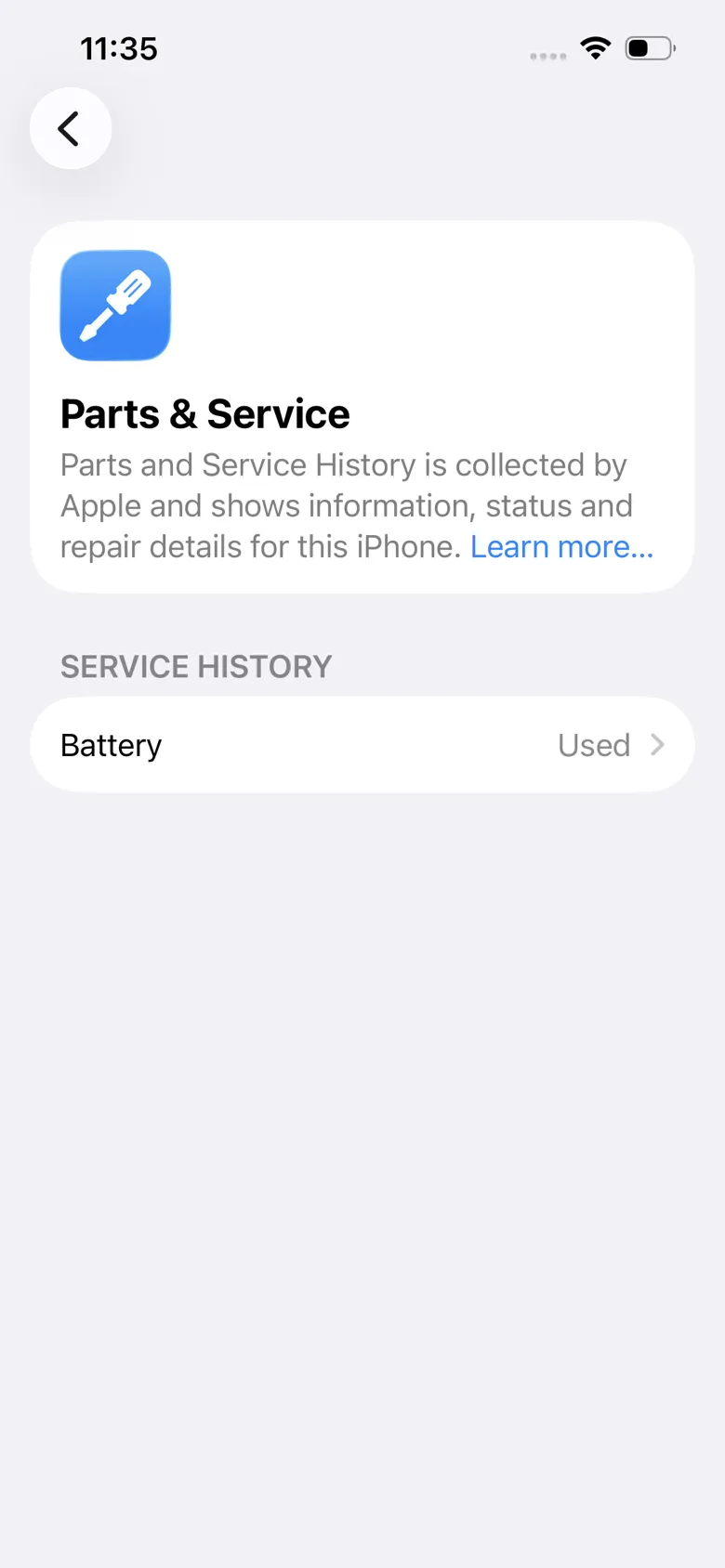
Parts & Service History: the battery recorded with the "Used" status.
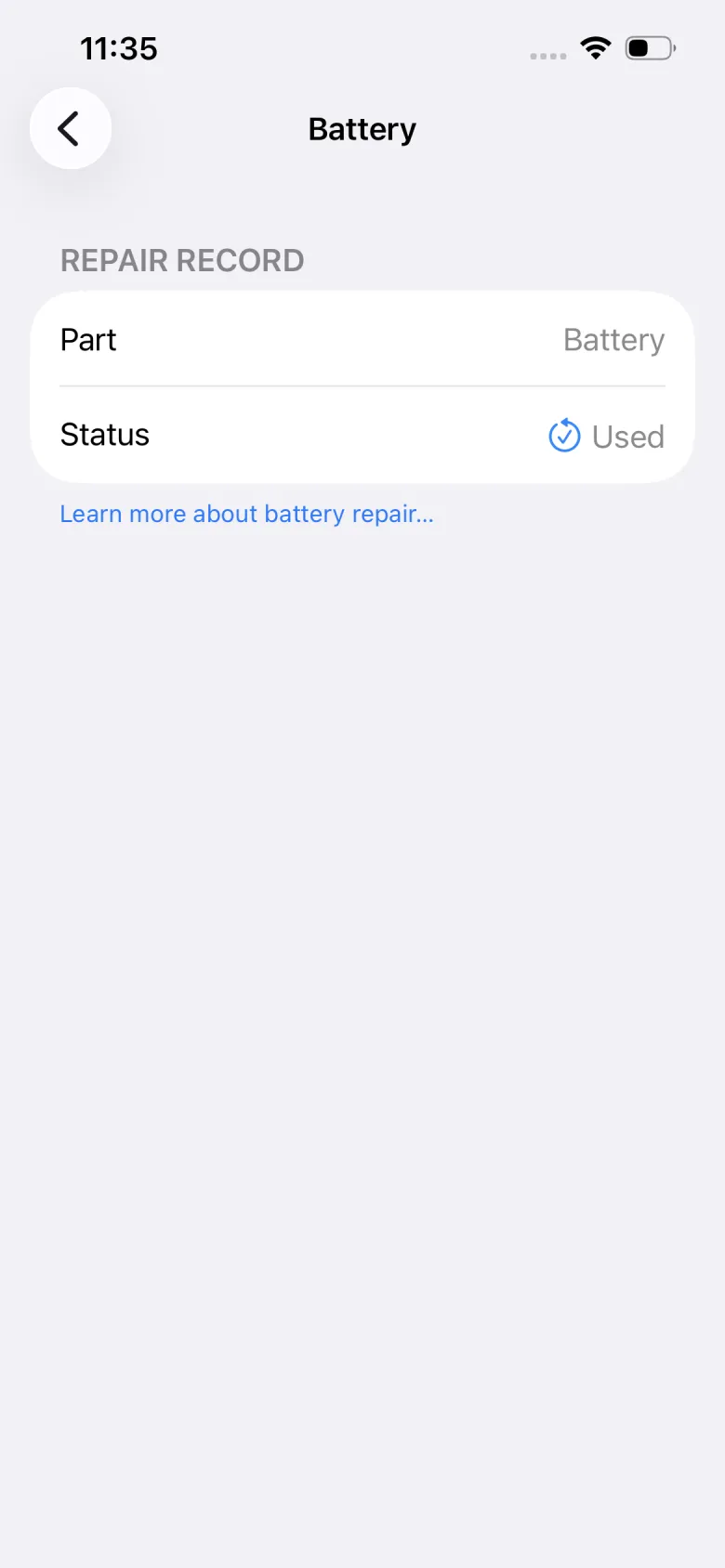
Record detail: an informational label, without a single warning.
None of these labels affects how the phone works. Display, touch sensitivity, charging and all functions work normally. The label is informational — Apple uses it to record where the part came from, nothing more. Which label you will see depends solely on the type of part you chose, and you know it before installation: every option on the model page shows the label iOS displays after that installation. You can find the overview by screen type on the iPhone screen replacement page, and by battery type on the iPhone battery replacement page. In addition, if a part that iOS labels as Unknown has been installed, the phone shows a notice about the part on the first unlock after the replacement, and once more after five days. That is Apple's standard mechanism, not an installation error. ---
The steps you finish yourself, with your passcode
You go through the order below once, usually in a few minutes.
1. Unlock the phone and connect it to Wi-Fi
The first step is also the most important: iOS runs part of its checks only when the device is unlocked and connected to the internet over Wi-Fi. Networks that require signing in through a browser (hotels, cafés, public networks with a login page) do not work for this — use your home or office network. Leave the phone on the charger for a few minutes. The battery should be above 20%, and the system updated to the latest available version of iOS.
2. If Settings says "Finish Repair" — start the configuration
If configuration is pending, iOS shows it right at the top of Settings — after a battery replacement there is a Finish Your Battery Repair shortcut there:
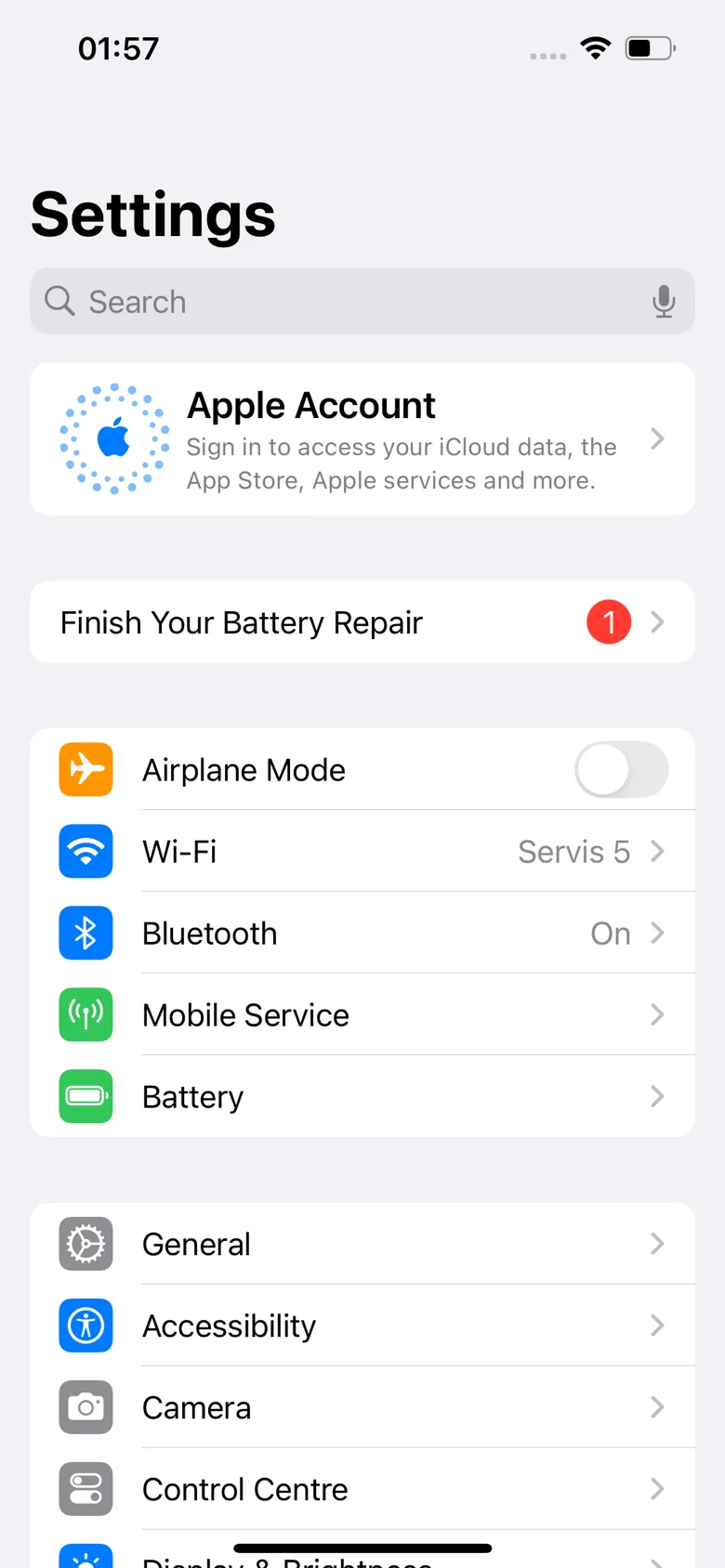
The shortcut at the top of Settings leads straight to the final configuration step.
You can open the same screen through Settings → General → About → Parts & Service History — if Finish Repair appears next to the part, iOS is waiting for the configuration to be completed. Tap Restart & Finish Repair and follow the on-screen instructions. The phone will restart, download the calibration data and finish the process on its own. Apple calls this tool Repair Assistant, and it is available for iPhone 12 and newer models, for the screen and the battery among other parts. 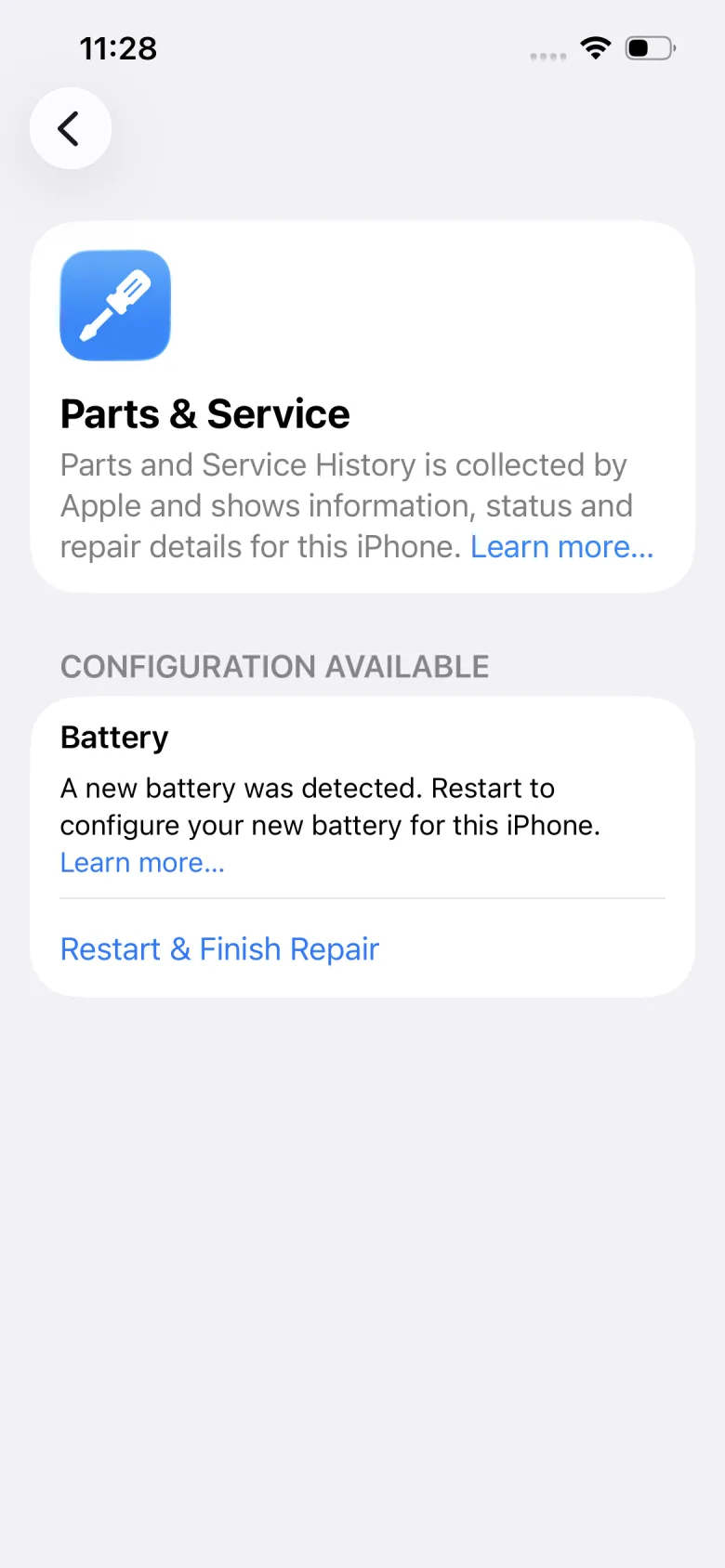
"Restart & Finish Repair": one restart and the phone finishes the configuration on its own.
If the configuration does not complete on the first try, check three things: that the phone is on a Wi-Fi network without a login page, that the battery is above 20% and that iOS is up to date. Then restart the phone and try again. If it still does not complete — get in touch with us. We take care of that, as part of the same job and at no charge.
3. After a screen replacement — check True Tone and auto-brightness
Open Settings → Display & Brightness and look at the True Tone switch. With screen types that pass Apple configuration, True Tone works normally. With more affordable types the option may be missing or the colours may look different than before — that is a known characteristic of that panel type, and we warn you about it before installation, not after. Check auto-brightness in Settings → Accessibility → Display & Text Size, under Auto-Brightness.
4. After a battery replacement — check the battery health display
Open Settings → Battery → Battery Health & Charging. With the batteries we install, the display works and shows the full capacity of the new battery. As a rule, the phone will first ask for one restart to finish configuration, and then record the battery in Parts & Service History. For the first few days the charge percentage may seem uneven — the system learns the new battery over a few full charge and discharge cycles. That settles down on its own. 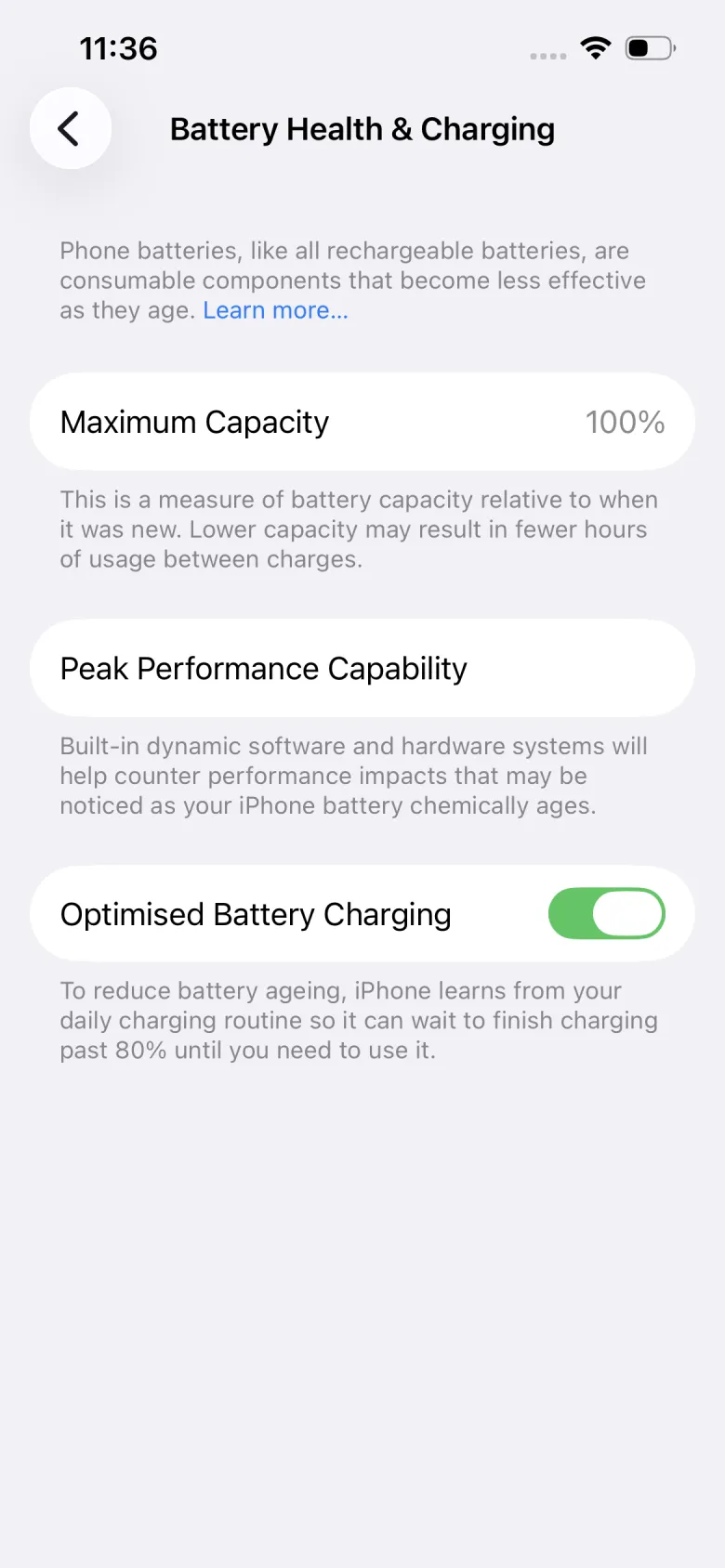
Battery Health & Charging right after installation: Maximum Capacity 100%.
5. Check Face ID
Face ID uses a module that, during a screen replacement, is transferred from your old screen to the new one, so as a rule it keeps working without any additional action. Unlock the phone with your face a few times and check that it also works in the apps where you use it. ---
Need phone repair?
What is normal to see, and what is not
This is the part customers call us about most often, so we set it out clearly. It is normal to see:
- a Used or Unknown label next to the part in Parts & Service History
- a notice about the part on the first unlock and once more after five days
- a message that the device information has been updated ("Apple has updated the device information for this iPhone") — Apple is simply recording the change
- one requested restart to finish the configuration
- an uneven battery percentage for the first few days
It is not normal, and then you should call us:
- Face ID does not work even after a restart
- touch does not respond in some area of the screen, or the screen responds on its own
- the screen flickers, has bright spots, or brightness changes for no reason
- the phone gets noticeably warm in normal use
- Finish Repair remains even after the configuration has completed successfully
- the battery drains faster than before the replacement
None of these is something you should fix yourself or put up with. Get in touch while the device is within the warranty period stated on your receipt — we do the diagnosis and, if needed, the part replacement at no charge. ---
If the phone says there is not enough storage
This is the most common reason the configuration does not go through on the first try, and it looks scarier than it is. Part configuration requires the latest version of iOS. If the phone's storage is full, the update cannot be downloaded — the phone says there is not enough space and the process stops. This has nothing to do with the replaced part and does not mean anything was installed incorrectly. How to continue:
- Open Settings → General → iPhone Storage and see how much is free. 5–6 GB is usually enough for the update. 2. The fastest way to free up space is to delete old videos and apps you do not use. Move your photos to a computer or the cloud first. 3. Once you have freed up space, run the update and then start the configuration again. If that is complicated for you or you do not want to delete anything, call us — we can finish the configuration together whenever it suits you. ---
Why we do not ask for your passcode
This is a deliberate decision, not a gap in the process. Your phone holds your messages, photos, emails, banking apps, passwords and a history of everything you have done. The passcode is the only thing that keeps all of that closed. A repair shop that knows it knows everything else too — and you have to take that on trust. We do not ask you for that trust, because we believe it should not be asked for at all. So: you hand the phone to us locked, and it comes back to you locked. We have been doing this work for twenty years and have never once needed to get into someone's system to replace a screen or a battery. What we check without unlocking covers the whole mechanical side of the job: the display and brightness uniformity on the lock screen, touch response across the whole surface, the buttons, charging and the percentage going up, the speakers, the camera and the flashlight from Control Centre, and that the device is correctly assembled. What we cannot do without your passcode, and the reason this article exists, are three things: running the final part configuration, viewing the battery health display and checking settings inside the system. That is three minutes of your time instead of your passcode — a trade-off we choose deliberately. If you are interested in device locking in general, we wrote about the methods and how strong they really are in the article how you lock your phone and why it matters. ---
Need phone repair?
If you prefer, we can finish the configuration
This is an option, never a condition. If it is easier for you to collect the phone fully finished, you can leave us your passcode when you drop it off. We then also do the final part: we run the part configuration to the end, check True Tone and auto-brightness, open the battery health display, test Face ID and go through the settings related to the replaced part. What it looks like in practice:
- You choose. If you say nothing, the default is that we do not ask for the passcode. - The passcode is used only for the checks listed. We do not open messages, the gallery, email or apps. - You can set a temporary passcode just for that day and change it as soon as you collect the device — many people find this the most comfortable solution. - You can withdraw your decision at any time while the device is with us. A third option, if you want neither: come to pick up the phone and we will go through the configuration together, on the spot. You hold the phone and enter your passcode, we show you where everything is. It takes as long as the process itself — a couple of minutes — and you do not leave us your passcode. For devices where access to the system is part of the service itself — for example data transfer to a new phone — access is agreed in advance and always with your explicit consent. ---
When to call us
Call us without hesitation if:
- the part configuration cannot be completed even after a restart and an update
- you notice anything from the "not normal" list
- you are not sure what a label you see in Settings means
- you would like us to go through the steps in this article with you over the phone
We are in New Belgrade, Bulevar Arsenija Čarnojevića 91, Apt 3. Phone: 065/362-61-31. ---
Frequently asked questions
Does a screen or battery replacement erase the data on the phone?
No. Screen replacement and battery replacement are hardware jobs and do not touch the contents of the device. Your photos, messages, apps and settings stay untouched. You hand the phone to us locked and we do not unlock it, so your content never even becomes accessible.
Why does Settings say "Used" or "Unknown Part"?
Because iOS records the origin of every replaced part. Used means the part is of the original type and has gone through Apple configuration, but was not sourced from Apple service. Unknown means the part has not passed that check — typically with more affordable screen types or with an original panel whose glass has been replaced. Neither label affects how the phone works, and you know which one you will see before installation because it is listed with every option on the model page.
I got a notice about the part when I unlocked the phone, and again after five days — is something wrong?
No. When a part that iOS labels as Unknown has been installed, Apple shows a notice on the first unlock after the replacement and one more after five days. After that it no longer appears. The information stays recorded in Parts & Service History, where you can look at it whenever you like.
What does "Finish Repair" mean and do I have to do it?
It is iOS asking for the configuration of the replaced part to be completed. Open Settings → General → About → Parts & Service History and tap Restart & Finish Repair. The phone needs a Wi-Fi network without a login page, a battery above 20% and an up-to-date iOS. It is worth completing the process — the part then works calibrated, as intended.
Does Face ID stop working after a screen replacement?
It should not. The Face ID module is transferred from your old screen to the new one and keeps working. If Face ID does not work after the replacement, that is not normal — get in touch right away, it is something we fix.
Does True Tone work after a screen replacement?
It depends on the screen type you chose. Types that pass Apple configuration keep True Tone. With more affordable types the option may be missing. This is known in advance and listed with every option on the iPhone screen replacement page — no surprises after collection.
Does the battery health display work after a replacement?
With the batteries we install, the display works and shows the full capacity of the new battery. The phone usually asks for one restart to finish the configuration, and then records the battery in Parts & Service History. We wrote in more detail about when a battery needs replacing at all in the article iPhone battery replacement — when is the right time.
Why don't you ask for the passcode like some other repair shops?
Because we do not need it to replace a screen or a battery, and asking for it would mean asking for access to everything else on your device. We would rather give you a few steps of instructions than put you in a position where you have to trust someone with the entire contents of your phone.
Can I leave you my passcode just for that day?
You can, and it is a common choice. Set a temporary passcode before you bring the phone in and change it as soon as you collect it. We use it only for the final configuration and the checks described above. ---
Book a replacement
You choose your appointment in advance on the book a repair page; for questions call 065/362-61-31. With a booked appointment, the device goes into the queue as soon as you arrive. See prices and the available part types by model on the iPhone screen replacement and iPhone battery replacement pages. If you are not sure which part type suits you, call us — we will go through the options together, including exactly what you will see in Settings after installation.